Upgrading from XP to Windows 7: Does Microsoft's method work?
By Scott M. Fulton, III | Published May 18, 2009, 4:57 PM
Three months ago, Betanews experimented with a process for converting a Windows XP-based system to Windows 7 even though a direct upgrade process was not officially supported by Microsoft. Our process involved borrowing a Windows Vista installation disc, and going through the upgrade motions twice except for the part where you register and activate Vista. This way, you would only have to register Windows 7. Although our tests involved an earlier build of Win7 than the current public release candidate, we discovered the process, while slow and laborious, was at least workable.
To make certain of this, we installed Office 2007 in our XP-based test system first, then ran Word, Excel, and PowerPoint perfectly well in Windows 7 after the installation was complete. We did have to re-activate Office, but that only took a moment.
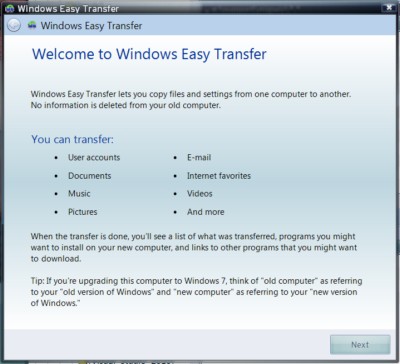
But wait a minute, Microsoft told us, there is a way to migrate from XP to Win7. Really? Well, in a sense. It involves the latest version of what in prior editions was called the Files and Settings Transfer Wizard, and which in Win7 goes by the name Windows Easy Transfer. As the documentation on Microsoft TechNet explains, "To maintain settings when installing Windows 7 on a computer running Windows XP, you must migrate files and settings using a tool such as Windows 7 Easy Transfer and then reinstall your software programs."
So if you have to reinstall all your old software anyway -- which, technically speaking, creates most of the "settings" which this new Easy Transfer would be migrating anyway -- just what does this wizard actually do? Does it just back up your private documents, or your My Documents folder? And if that's all it does, then wouldn't depositing that folder on a separate hard drive make the migration process easier to manage?
We decided to try to answer these questions for ourselves rather than cast more rhetorical questions to the wind. What we discovered wasn't exactly hopeful news:
Your XP installation evidently needs to be squeaky clean. Rather than create a very clean XP installation, we used a duplicate of a very, very well-used XP installation, with Registry settings dating back to practically the Middle Ages. We could not get Easy Transfer to survive the initial scan of the Documents and Settings folder, after numerous attempts, despite our having disabled all anti-malware software, including firewalls. In an attempt to clear the system of any possible conflicts with system drivers, we tried to run Easy Transfer in Safe Mode, only to discover...
You can't run Easy Transfer in Safe Mode. You'd think since this is essentially a system tool, Microsoft would have designed it to run in Safe Mode, which is where many Windows 95 / Win98 veterans performed many system upgrades to XP after all. Perhaps our choice of USB-based storage device was giving the wizard fits -- surely with 100 GB of free space, it shouldn't be a problem. In any event, we tried choosing to network two computers together, bypassing the remote storage option. And that's where we learned...
If you want to network a second computer, its Windows must have the same bit-width as the one you're transferring. The setup program assumes that any network computer where you want to store the files and settings is the same one where you want them finally installed (we discovered this in the Help file which, granted, is where folks more sane than we are tend to look first). So if you're transferring settings from a 32-bit computer, no, you can't use another computer on your network as a temporary storage device, so a 64-bit Vista is right out.
We got the distinct impression that the only XP system that Easy Transfer will work with, is one that only has a single hard drive and whose My Documents directory is stored on C:\. As I've advised folks for decades, this isn't the way you should set up your computers anyway -- your personal documents should always be on a separate disk from your system disk, for both performance and safety reasons.
So for now, we'll continue to advise our readers and friends to continue using the method we prescribed: Borrow a Vista installation disc, upgrade to Vista, then upgrade again to Win7. It's not pretty, nor is it particularly any fun, but it's manageable.
Hi Please tell me how can i upgrade my system from XP to window 7
Score: 0
|win7 is a beta release and will expire / (cease to fully function) in august 2009.
perhaps, you can ask the question again when the official version is realeased to market sometime next year.
Score: 0
|Who in the right mind would want to do a double upgrade with all this hassle and cripple,
instead of a clean install.
It's just better to do a clean install, way better.
It's faster (
Score: 1
|Tried Windows vista - Scrapped it as it was too slow and "Glitchy"
Tried Windows 7! It's rubbish! Why do you think they packaged Virtual PC with it? So you can still use the software and hardware!
Windows XP is still the best version!
Score: -1
|Pls how can i upgrade my system to window 7
Score: 0
|Who in their right mind EVER, EVER, EVER upgrades their OS? Christ... If you're 'upgrading' ie, moving onto another OS, rebuild the PC and stop being an idiot.
I've just jumped from XP to 7 (7100) and it's awesome. I put the 7 disk in, rebooted, formatted the drive, ran through about 5 small settings (language, etc) and was sat on the new desktop inside of half an hour! Even installing my old programs (which I'm yet to find one that doesn't work) seemed to take less time than XP did, and work faster thatn XP did.
Bottom line; Stop ****ing about and rebuild.
Score: -1
|Score: 0
|Complete BS that they couldn't handle the XP -> Win7 upgrade path. It's not that different from Vista, so if it works there then it wouldn't have taken much to use the same process. That and it's simply bizarre that MS would discourage upgrading by making it difficult.
Score: 0
|Surely this is a method that works, but is it really worth the hassle? I mean, upgrading from XP to Vista to 7, only to find out that half of your programs aren't working and will require a reinstall. Your test scenario consisted of Office 2007, but unlike that program several others will simply throw up an error. I once upgraded from XP to Vista and my KIS2009 simply refused to work. I had to reinstall it to get it working again. Beats the whole point of an in-place upgrade. And then there are the remnants of old software installations to deal with. I'd just say that this method is feasible if you're absolutely sure that all your programs WILL work after the upgrade to Windows 7.
Score: 0
|exactly!
"if windows were the only program/database on a computer, then people wouldn't have any problems"
the problem is that third party software and hardware makers are in the business to make money.
therefore, they will unlikely provide "free" software and driver updates and people will have to spend more money, than just on win7.
so the question is will microsoft be loyal to the customers and incorporate programming in win7 that allows software and hardware engineered for xp to function "or" will microsoft be loyal to their oem's?
the above is rhetorical because we all know what the answer truly is.
Score: 0
|"we all know what the answer truly is."
That most of the hardware works already and the companies that pulled that stunt with Vista are now "off the list" of most shoppers (Creative, I'm looking at you)?
Yeah, you're right. ;-)
Score: -1
|Easy transfer has been around in XP since 2001. however, I don't recommend people use it. It's more time consuming, but you get a cleaner install and can discover new features with a new install and set your features back manually.
Score: 1
|There is a bug in USMT and Windows easy transfer where if power management suspends/sleeps/hibernates the PC during the migration, the transfer (obviously) fails. You would have thought MS would have disabled this feature during the migration period, but to my knowledge this must be done manually.
Score: 0
|No-one should upgrade XP to Win7. Period.
If you do not have a spare drive, USB stick, or networks share to place your files&settings on (using Windows Easy Transfer, or whatever), then wait until the *you* are ready to replace the system. It's just not worth the hassle to do all of this and end up with an unsupported "frankenstein" OS install that will *never* give you the performance and stability a clean install would. You'd only be setting yourself up for disappointment.
Point being: If you are unwilling or unable to install clean for whatever reason, just don't do it. Stick with XP until the option of a clean install becomes feasible.
M^3: AFAIK, Windows Easy Transfer (and FAST before it) are merely front-ends for USMT. You don't get access to *all* of the functionality through the GUI, but they should be 100% compatible.
Score: 3
|"No-one should upgrade XP to Win7. Period."
N one should ever do an in-place upgrade of **ANY** OS - period.
Score: 0
|This line is where IT Professionals go, WTH...
---
As I've advised folks for decades, this isn't the way you should set up your computers anyway -- your personal documents should always be on a separate disk from your system disk, for both performance and safety reasons.
---
(STOP ADVISING PEOPLE THIS... PLEASE!)
1) This was true 10-15 years ago, it is no longer true.
2) It was a concept that was borrowed from the *nix world and early NT days.
3) The modern OS and 'organizational' UI movement is that users no longer should even have to think about where their document or programs/applications are stored, and everything is just available. (MS is trying to move IT in this direction kicking and screaming.)
There is no fundamental difference between having all the User data in a Folder called \Users than having it on a virtual partition on the same physical drive.
Not since XP days, and that is 8 years ago, so stop telling people this.
Also IT people, it DOES NOT make your job of restoring user data easier, it will make it harder, just as this article demonstrates as it breaks the migration tools from Microsoft, so how much did moving the files really help make things safer or easier? It didn't.
The same is true of users that create a special partition for a pagefile like was common in UNIX. (This is also wrong with today's hard drives as the physical drive may create a non-contiguous partition, and also the partition location is LOCKED to a physical place on the drive that may not be the fastest location for the Hard Drive. This is why letting Windows manage the Pagefile is the BEST OPTION, as it can move the pagefile around to the fastest location of the physical disk. Understand?
Anyway, back to the User data area. LEAVE IT ALONE.
The only reason to store User data on another 'DRIVE' is if you are out of space on your main drive. PERIOD.
(And even then it is often smarter to install applications to another drive instead of the USER folder data, as having programs on another drive ACTUALLY will increase performance since they demand more from the HD and being on a different partition than the OS will make a small difference.)
Additionally, there are easy ways to move your USER data without all the hacks and registry crap that IT pros like to throw at users. If you need any USER folder on another drive for Space (like you have a Huge Video collection) you have two choices in Win7.
1) Make a Video folder on the other drive and add it to the 'Video Library'
2) Right click on your Video Folder and TELL WINDOWS TO MOVE IT TO A NEW LOCATOIN. (It really is just that simple and then tools like the Transfer Wizard will not choke.)
Now on to correcting the slant against the File Transfer Wizard...
If you use the Wizard with Windows 7 or even the updated Version that shipped with Vista, it WILL process and 'migrate' some applications from the XP machine if you tell it. It is not strictly User Data only.
For example, Office is a good example of an application that the Transfer Wizard will pull over with all your User settings and program specific settings to the new machine/install.
Truly understand the tool before you totaly bash it. It is not a 100% solution or perfect, but for most home users, it works quite well when moving from machine to machine, and far better than tools you will find from Apple or even 3rd party that try to do the same for their users.
PS Moving from XP to Win7 will be harder for people that have modified standard system crap that they should not have been monkeying with. But it can be done, even if you have to borrow a Vista DVD as the Author states also works.
By ripping out all the migration code from Win7 for the install process, it reduced a lot of complexity in the setup, not only speeding it up, but also making it more reliable, as Vista and Win7 use entirely different install methods that run in a native WinPE mode that truly 'moves and migrates' instead of just overwriting like XP and older versions of Windows worked. This is why Vista or Win7 can easily rollback failed installations and the risk of a failed installation is very low.
Most people are going to buy a computer with Win7 and not upgrade, and using the migration tools from one machine to the other works better than the author realizes in this situation.
For everyone else, if you have problems, you will have a friend or local tech shop that can help you, and DO NOT LET THEM WIPE your system, find someone that really knows what they are doing.
(PS Too often local Tech Shops are pretty stupid about 'fixing' errors and will tell users they have a virus or something that can't be fixed and then do a clean install anytime you need something fixed. RUN from these type of shops and find a real IT person/Shop that can just fix the problem.)
Score: 1
|Anthony, I appreciate your saying that I should truly understand a tool before I bash it. That said, I would think that Job 1 under the category of "Being Understood" is that the tool has to _work_. If there's an everyday circumstance which leads the tool to fail to work as advertised, or at all, that's a problem.
Also, with regard to your opinion on relocating the user data area, for reasons I've already made clear on numerous occasions, I respectfully but whole-heartedly disagree.
-SF3
Score: -3
|You are throwing very non-standard installations at it if your User data is scattered around your system.
There are reasons Microsoft puts the User data where they do and why it expects it to be there. This is not typical, maybe a good warning to users that make the same stupid mistakes, but not something average users will encounter.
Microsoft and especially the engineers specifically 'designing' the OS to work a way are not stupid people and there are reasons they do what they do and why some things are outdated and they reject.
When Vista was designed the Documents and Settings folder was redirected, they could have created a new partition structure and redirected it there if that would have been the 'right' thing to do, and in contrast to what you are saying, they didn't and there are GOOD reasons why they didn't and why your thinking is a 'bad' idea.
Storing portable user data on an external is great, or keeping backups is great, but shoving the user profile areas around is stupid.
As for you disagreeing, you are not disagreeing with me, you realize you are disagreeing with FACTS and opinions by people that are designing the OS.
If you really think throwing user data on a separate partition is ANY DIFFERENT than a folder called \User, you have no idea how NTFS or hard drives work.
If you want to argue that putting user data on a separate drive (that most users don't have) you would at least have a few facts to argue with, but they are very weak with organizational concepts of newer OSes, specifically Vista and Win7 and the UI and organizational models they continue to introduce to both home users and corporate IT deployments.
I know you don't know who I am, and you should assume I am the average nut promoting some religion; however, what I challenge you to do is to think about what I said, and actually go do some homework on this subject.
I can assure you that if you revisited concepts you were taught years ago, and go to the sources of the data, you will find, the reasons behind separate partitions and abstraction of data was a good idea back then. You will also find out why it no longer is a credited way of thinking of data, especially in the Windows and NT world.
There is also me going to step in here and stop you from giving really bad advice to people. Take time to readdress your views on this subject before you accidently make life harder on users, which you are doing, even as you demonstrate in the Article.
Either way, I challenge you to reconsider giving advice that contradicts modern organizational technologies and specifically contradicts Microsoft when you are moving the data in 'non-approved' ways. Especially when you can use the OS to move data file locations fairly easily without the hacks it appears you are using.
There is also something for you to personally gain if you challenge yourself to reconsider what you believe and see a new way of working with data and storage in general. Especially if you can let go of 20yr old concepts and even go one step further of removing 'paths' from your lexicon and use 'location' as a transitional term.
It will benefit your daily computing methods, and I understand, I had to break myself of some of the same things over the years. There is also the universal storage model OSes are moving to and 'physical' location of data will no longer have any relevance, as it will just 'exist', and that is a big jump for people still thinking about partitions.
(And yes many of the newer larger HDs don't create contiguous partitions because of how they structure data, which is quite amazing when you crack open a low level HD tool and see a happy Linux user with a special swapfile partition that is in 100 fragments scatter over the physical platters of the drive that is highly inefficient.)
Take care...
Score: 0
|"This line is where IT Professionals go, WTH..."
Actually, this is where IT professionals would agree with Scott.
Scott specifically said "separate disk", he did not say anything about partitions, so I'm not sure why you brought up partitions. In a corporate environment (where we'd find said IT professionals), you'd find user homedirs on some kind of network drive, and the user folders (My Documents, etc.) would be moved to that homedir, typically with GPOs to modify the appropriate registry keys and/or roaming profiles.
Score: 0
|@ AnthonySPT: You seem to have the incorrect assumption that just because Microsoft does things a certain way they must be right and everybody else must be wrong. It should be possible to change the OS on a computer by doing a clean install or in place upgrade as often as you want without harming your data. Storing data on the same drive as the OS does not permit this so obviously your reasoning is flawed.
Score: 0
|How things should be done and how they *are* done are two entirely different things in almost *all* cases. It's nice to think of being able to swap OSes like USB sticks and still have all your apps and profiles working...it just doesn't work that way in the real world.
Hell, I should be able to walk into the autoshop and ask for breakpads without having to tell them what make, model, year my vehicle is. I should be able to just grab any old set and throw 'em on. Doesn't quite work that way... ;)
Score: -1
|@aSPT
"You are throwing very non-standard installations at it if your User data is scattered around your system"
perhaps, in a perfect world where computers have only windows running on them, can one be so confident and error free.
but you are under a delusion, that everything is perfectly ok to keep everything on one disk.
it is malware makers and hackers that thrive on such complacencies.
the problem with having your personal files on the system partition, is that when the system is under attack either by an infection, poorly written software or simple user ignorance, the casualties will be user data.
respectfully, you are a moron if you think that people should keep there personal user data on the system partition.
you are welcome to provide your advice to those who will listen to it and don't know any better because it is not "your" personal data that is being jeopardize.
no doubt you are also keeping your backup files/archives on the system partition too, that is if you are abiding by your own skewed logic.
Score: 1
|@PC_Tool: I don't mind having to reinstall all of my applications. What I meant was you should be able to change your OS without harming any of your data (such as word documents, music ripped from CD's, etc.)
Score: 0
|I agree with that 100%.
The "data" (desktop, libraries, download folders, etc...) should all be on a separate partition. I am guessing they are headed this way with the advent of the "system" partition in Win7. Hopefully we'll see better structure in whatever comes next.
Score: -1
|Have you tried Microsoft's user state migration tool v 3.0.1?
http://fileforum.betanew...ation-Tool/1131985767/1
updated listing - http://www.microsoft.com...c595&displaylang=en
I haven't tried it yet but I am curious as to how well it would work (If at all).
Score: 0
|Clean INSTALL IS THE ONLY THING WORTH DOING.. this is the true for every OS since the begining of time.
If you do upgrade worms and virus's will LOVE YOU!
Score: 0
|Clean Installs are not always better, and the chance of a virus or worm surviving a Vista or Win7 upgrade would be really hard.
If you have the time and your software, sure why not do a clean install. If you are a busy person, upgrade. (And only Vista people are going to be upgrading anyway here, and moving to Win7 is pretty simple and sweet, and a worm if it exists on Vista won't survive, as the OS looks like an upgrade, but the way Win7 works, it is a clean install with the Vista setting reapplied.)
Score: 2
|perhaps, people can skip from xp to w7 without tripping if your somewhat of an expert with computers.
however, it is unlikely that an old machine built for xp will run w7 without headaches.
Score: 1
|"however, it is unlikely that an old machine built for xp will run w7 without headaches."
Says the guy who has *zero* experience with it...
I installed the Win7 beta on an HP ze2113us. Not only does it run better than it did with XP, Aero is enabled and a laptop I was *about* to throw away became my media-center front-end.
What type of massive upgrades did it take? Upgrading the 512MB of RAM to 1GB. Less than $40.
No headaches, no driver installations. Ran the WEI and it just worked.
Score: 1
|This is where the myth of old computers can't run Vista or Win7 still lives.
If you have a 700mhz PIII and 1GB of RAM, it will run Vista or Win7 faster than XP ran on the same machine (Faster than Win98 ran on the Machine even)
Even if you have a 700mhz PIII and 512mb of RAM and the machine can't get more RAM, Win7 will still work well and as well as XP, Vista will be slower than XP on the machine. So here again Win7 is a viable solution for a 10 year old computer.
People would be shocked to see the 'daily use' systems are techs have Vista and Win7 running on. From really old 2001 Toshiba P4M laptops to even tons of Atom based netbooks with 512mb or 1GB of RAM, and these are 'daily use' machines, where if XP or another solution was faster, the techs here would be running that instead.
RAM is the key to Vista, and something Vista uses well once you hit the threshold. 1GB is where is Vista runs as fast as XP, and as you add more RAM, Vista will 'scale' up to take advantage of the RAM more than XP could, so even shoving 4 or 8gb into a system will CONTINUE to get faster as Vista will use that 'unused' extra RAM for caching and prefetching that allows the OS to scale up in speed as you throw more RAM at it. This is in contrast to XP or OS X or Linux, as they hit a threshold where more RAM doesn't do much as the OS stops using the extra RAM to overcome the biggest bottleneck of a computer, the Hard Drive transfer speed.
PS The other trick to a good Vista or Win7 experience for Aero is just a video card made in 2003 or newer. And if you have a 2001 laptop with a crap video that won't do Aero, it will load XPDM drivers and run just like XP with regard to video. So you aren't losing anyhing. And if you have a computer with a 2003 video card that does Aero, you will bet faster onscreen performance for many reasons.
PS People STOP turning off Aero, so many people turn it off thinking the 'glass' or eye candy slows down the computer, when it actually is used to accelerate so many things from Font rendering to GDI+ operations and even bitmap processing all the way to the advantages of a two-way vector composer that reduces screen redraws.
Give your old computers some new life if you can get 1GB of RAM in it get Win7 running on it, you will be surprised... (Even Vista on the machine with SP1 will be faster than XP, trust me.)
Score: 1
|"however, it is unlikely that an old machine built for xp will run w7 without headaches."
My boss's old computer is running Win7 with everything enabled and it's not having any problems at all. I wouldn't dare put Vista on it.
Score: 0
|Windows XP graphics drivers are NOT compatible with Windows 7. They are compatible with Vista however. If you try to install an XP graphics driver under Windows 7 when you reboot the standard VGA driver will be reinstalled. This means that Intel's older integrated Extreme Graphics solutions like the ones found on the 82845G desktop and 82855GM mobile chipsets will NOT have any support whatsoever for accelerated 2D or 3D graphics under Windows 7.
Score: 0
|I don't believe anyone said it would...
The only reference I can see regarding XP video above is:
"it will load XPDM drivers and run just like XP with regard to video."
I believe he meant to say GDI, and was not stating XP drivers work with Vista, simply that with Non-Aero capable cards Win7 will display the desktop using GDI, just like XP did.
Score: -1
|@aSPT
"This is where the myth of old computers can't run Vista or Win7 still lives."
perhaps, many computers can run virtually all operating systems with minimal upgrading, if any.
but the operating system is only "1" value of the equation.
it is doubtful that computers that are marginally compatiable with the o.s., can also run varying array of multimedia, business softwares, graphics software "and" anti virals, without crashing and burning.
you see, microsoft is not the only software maker in this formula. you have to take into account the third party software makers and thier software and the hardware products as well.
Score: 0
|"it is doubtful that computers that are marginally compatiable with the o.s., can also run varying array of multimedia, business softwares, graphics software "and" anti virals, without crashing and burning."
Nice strawman....
These are limitations of the laptop (hardware), not the OS (software).
A system that cannot run Office, WoW and WinAMP all at the same time in Win7 would not have been able to do that in XP or Vista either. In fact, in my example system above (HP ze2113us), Vista wouldn't even install and it runs what it *is* capable of running *better* under 7 than it ever did with XP.
Score: -1
|Please be Honest with your readers and advise them a clean install of W7 is the only and best way to go. XP is old and it is time for it to go.
Score: 0
|Based on what? Gut feeling? Wouldn't you rather someone had the courage to certify that suggestion before just blindly giving it out to folks?
-SF3
Score: 1
|How about experience. How about the educated opinion of nearly every IT worker on the face of the planet?
Hell, even upgrading Win7 build-to-build introduced quirks with stability and performance on my system.
Score: 0
|Doesn't Microsoft normally state that a clean install is required when going from build to build of a beta version of Windows? This is what Microsoft has told the general public when moving from build 7000 of Windows 7 to build 7100.
Score: 0
|It isn't allowed going from 7000 to 7100 unless you install from disk after altering a file.
Beta to Beta had no such restrictions.
FWIW: even with the restriction, it's *still* a far sight "better" than what is suggested in the article. Build-to-build, even with the restriction, is at least still the same OS. XP to win7 isn't even in the same ballpark.
Score: 0
|Stop advising them that and advise them to do a fresh install.
Jumping straight from XP to Win7 is going to end in tears sooner of later. Even if it is via Vista.
Score: 1
|Well, Paul, the question for many users will be, is there any way whatsoever to avoid having to reinstall every application they own? For them, a fresh install may not be an option.
-SF3
Score: -3
|While that may be true, the applications may not run anyway or for that matter, the installers may not run on Windows 7.
I'm one to upgrade on Mac OS X or Linux but for Windows, it's really not a good idea. For all the ordered chaos of "uninstallers", there is usually something missed and clearing all of that helps.
I guess Easy Transfer isn't quite so easy anyway. At least, the Mac OS X Migration Assistant will copy applications, also. Still, what's the big deal? It's not as though there are 22 (or 220) diskettes.
Score: 0
|The type of people who do not know how to do a clean install of their operating system are typically the type of people who only get a new OS when they get a new computer (i.e. your parents).
In a corporate environment, in-place upgrades of PCs never happen anyway.
Someone who would be savvy enough to know to borrow a Vista DVD to perform an upgrade like this, or someone who is reading a site like Betanews, knows better than to perform an in-place upgrade in the first place.
Score: 2
|Give Scott a break. His intention was to help others. Most people will get W7 with a new computer anyway.
Now can someone help me upgrade the firmware on my TV? How do I transfer my favorite channels? Will my HD TV still play black-and-white video?
Score: -1
|@SMFulton3: They shouldn't be avoiding reinstalling every application.
I'm not saying this is so with an upgrade from Vista to Win7, but is certainly the case with XP to Win7.
Program incompatibilities abound and two upgrades in a row is truly hideous.
If a fresh install is out of the question then I honestly think they shouldn't be looking at moving to Win7 at all and should stick with XP until they buy a new computer. In that case, then this migration tool comes in to its own.
Score: 0
|